
The M8Chat app
Read and send messages.
Every chat is end-to-end encrypted. Only the people in it can read it.
Use this guide when
- You want to read and send messages.
- Someone has invited you to a chat.
- You want to start a new private chat.
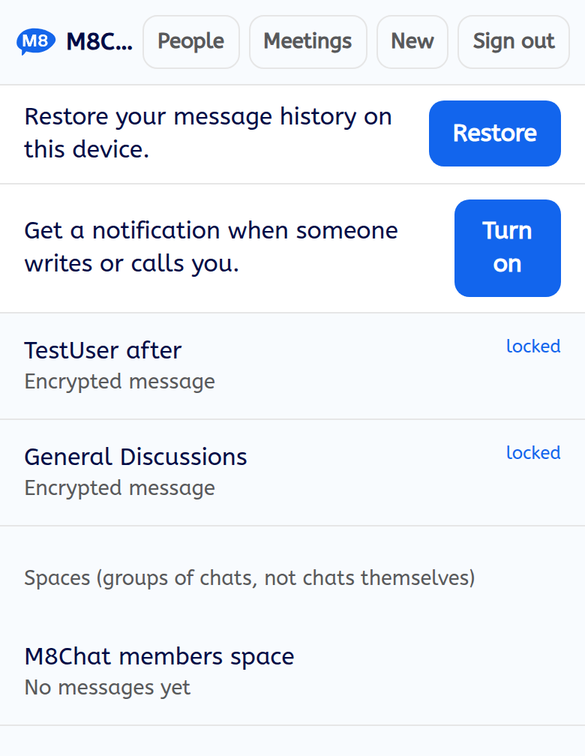
Your chat list shows every chat you are in, newest first, with the last message under each name. A “locked” label means the chat is end-to-end encrypted.
- Step 1
Open a chat
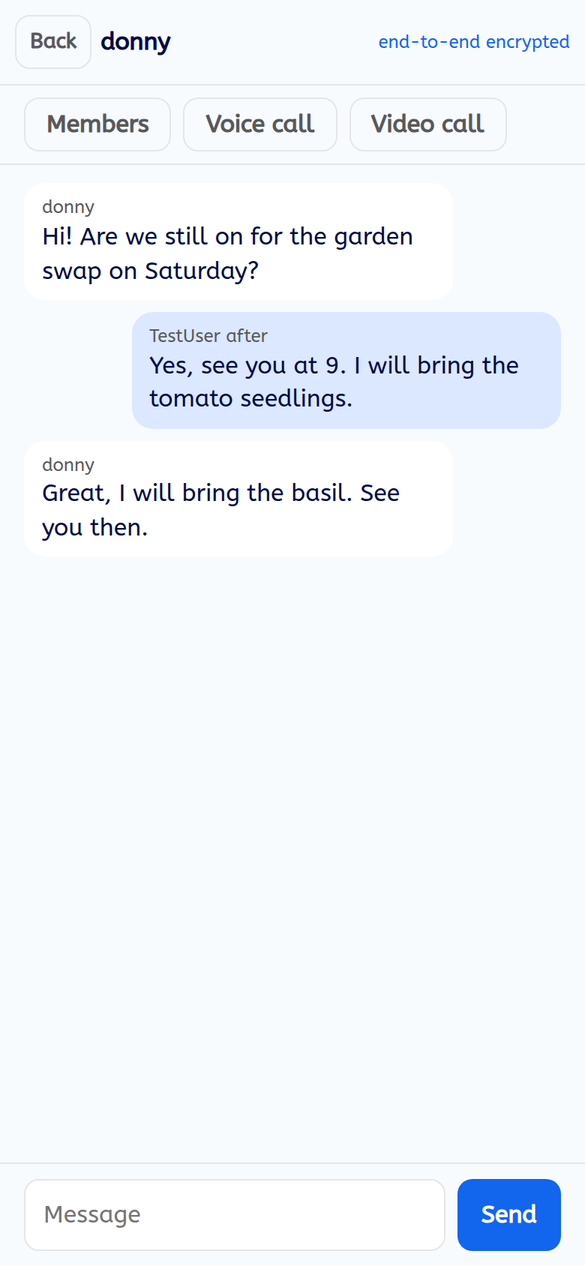
Tap a chat in your list to open it. At the top you see the chat name and “end-to-end encrypted”. Your messages are on the right, other people on the left.
- Step 2
Send a message
Type in the “Message” box at the bottom and tap “Send”. New messages from others appear by themselves.
The app sends text messages. For photos and files, use Element.
- Step 3
Start a new private chat
Tap “New” at the top of the chat list and type a name when it asks “Name for the new private chat?”. The app makes an encrypted chat with that name.
To chat with one other person, use People instead. It starts a private chat with them in one tap.
- Step 4
Accept an invitation
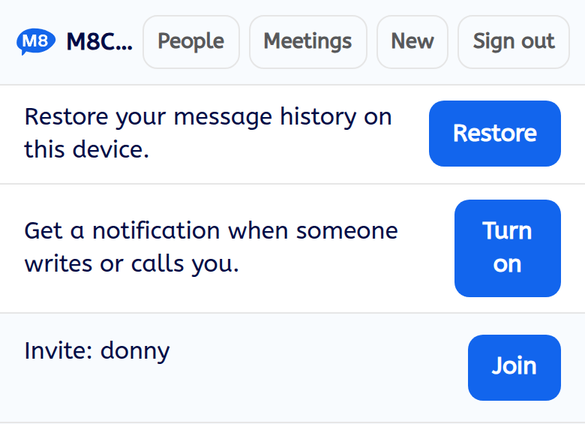
When someone starts a chat with you, it appears in your list as “Invite:” followed by their name, with a “Join” button. Tap “Join” to open it.
- Step 5
Find the latest, more rooms and your account
The tabs under the title take you to more places. “Chats” is your list, with the busiest chat at the top. “Latest” shows the last 12 messages sent to you, newest first. “Find rooms” lists rooms inside your spaces that you have not joined yet, each with a “Join” button. “Account” shows your display name, Matrix name, email and the devices signed in, plus your call and notification settings.
You change your password on the website, and it updates in the app as well.
- Step 6
Use it on a computer
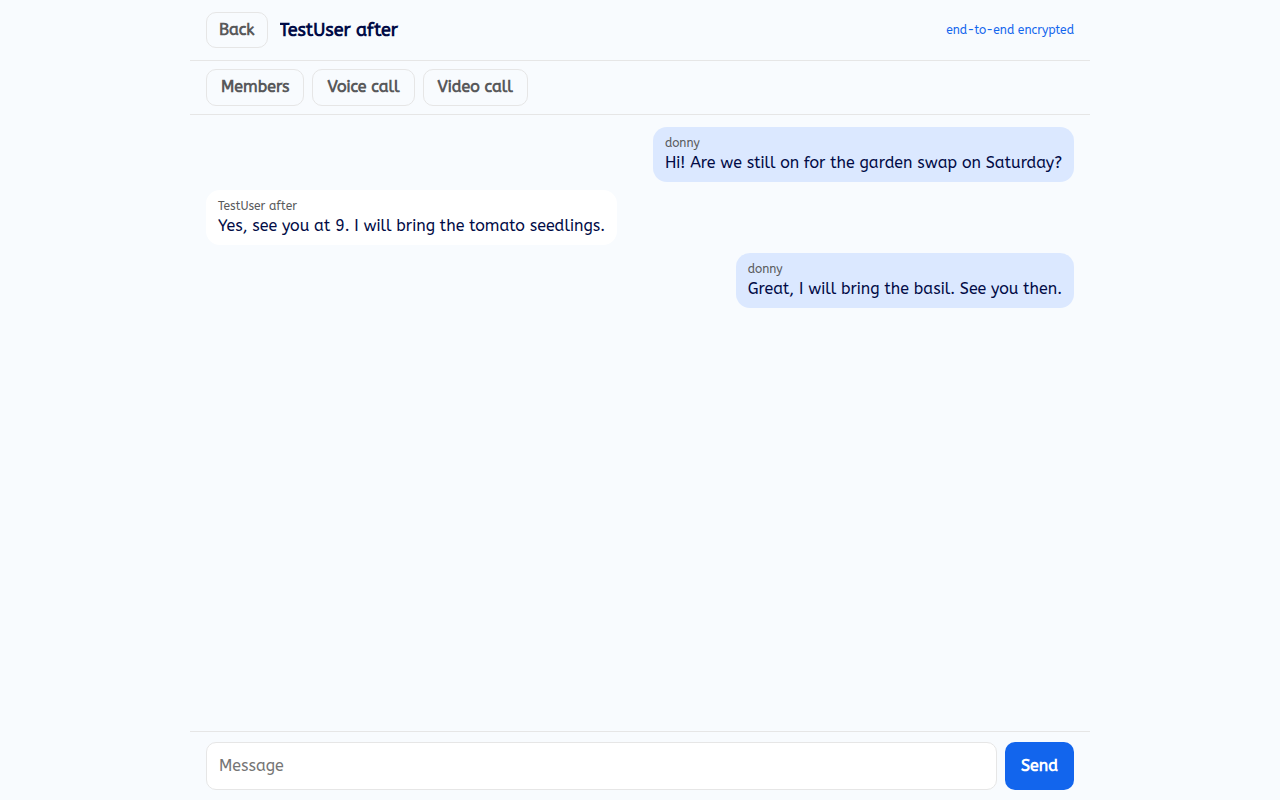
On a computer the app is the same, in a wider window. Chats, calls and meetings all work the same way.
Good to know
- Spaces. A space is a group of chats, not a chat itself. It is listed under “Spaces (groups of chats, not chats themselves)”.
- Read-only chats. Some chats show “You can read this room but only moderators can post in it.” You can read them but not write.
- Older messages. On a new device, older messages need your recovery phrase before they can be read.
If something goes wrong
It says "Message not sent. Check your connection and try again."
Your message is put back in the box. Check your internet and tap “Send” again.
It says "You are not allowed to post in this room."
Only moderators can post in that chat.
A message says "Cannot read this message on this device"
Restore your history with your recovery phrase. See Restore your history.