The M8Chat app
Notifications and ringing.
Get a nudge when someone writes or calls you, and choose how calls ring. The notice never shows the message itself.
Use this guide when
- You do not want to miss a message or a call.
- You see “Get a notification when someone writes or calls you.”
Notifications are private. They only say “You have a new message or call.” The text of your messages never leaves the encrypted chat.
- Step 1
Tap "Turn on"
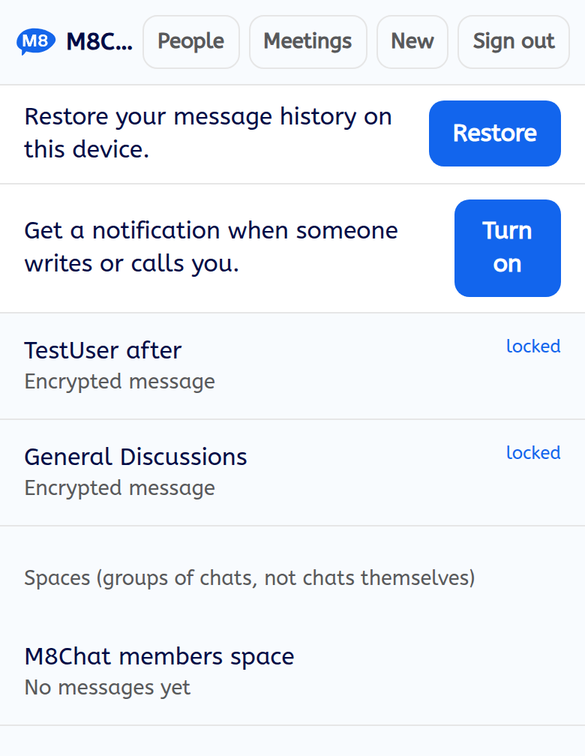
At the top of your chat list, tap “Turn on” next to “Get a notification when someone writes or calls you.”
- Step 2
Allow notifications
Your browser or phone asks if M8Chat may send notifications. Tap “Allow”. The banner then disappears.
- Step 3
Tap a notification to open the app
When something new arrives while the app is closed or hidden, you see “M8Chat: You have a new message or call.” Tap it to open the app.
- Step 4
Choose how calls ring
Tap “Account”, then find “Calls and notifications”. “When someone calls me” has three choices:
- Follow my phone (the default). A call shows as a notice on your phone, and your phone volume, silent mode and Do Not Disturb decide whether it makes a sound.
- Play my ringtone in the app. The app rings while it is open. It cannot tell if your phone is on silent.
- Screen only. No sound or vibration.
Pick “My ringtone” from Classic, Chime, Soft or Urgent, and tap “Hear it” to try it. The ringtone is for when the app plays the sound. A phone notice always uses the sound set in your phone.
Good to know
- iPhone and iPad. Apple only allows web app notifications when the app has been added to your Home Screen, on iOS 16.4 or newer.
- Keep it working. Notifications arrive through your phone system, so the app does not need to run in the background and does not drain the battery. They also keep working after you restart the phone, with no need to open the app first. On Android, if notices are late, open the phone settings for the app (or your browser) and set battery use to “Unrestricted” or “Not optimised”. On iPhone, add the app to the Home Screen first.
- One device at a time. Turn them on on each phone or computer you use.
- Signing out turns them off for that device.
If something goes wrong
It says "Notifications are blocked or not supported on this device."
You may have blocked them earlier. Open your browser or phone settings for M8Chat and allow notifications, then reload the app. Some browsers do not support them.
I do not see the banner
It only shows when notifications are off and not blocked. If you already turned them on, you will not see it.