
The M8Chat app
Restore your history on a new device.
Signed in somewhere new and your old messages say they cannot be read? Your recovery phrase fixes that.
Use this guide when
- You signed in on a new phone or computer.
- You see “Restore your message history on this device.” or “Cannot read this message on this device”.
Your chats are encrypted so only your devices can read them. A new device has no keys yet. Your five-word recovery phrase gives it the keys.
- Step 1
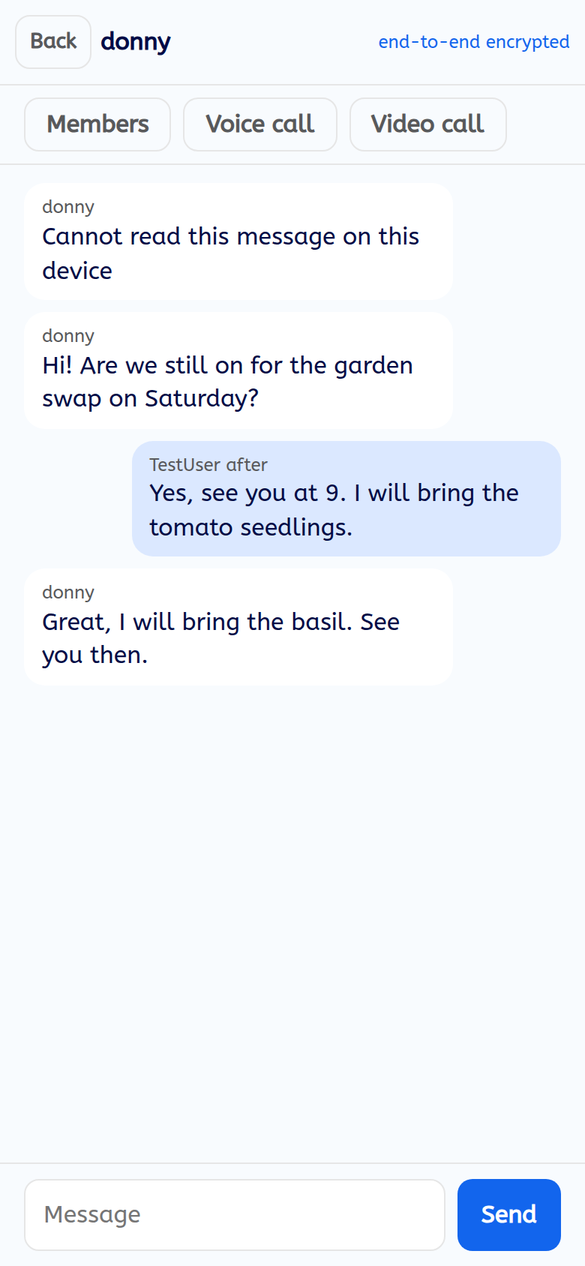
See what an unrestored device looks like
On a new device, older messages show “Cannot read this message on this device”. Messages sent after you signed in on this device are readable straight away.
- Step 2
Tap "Restore"
At the top of your chat list, tap “Restore” next to “Restore your message history on this device.”
- Step 3
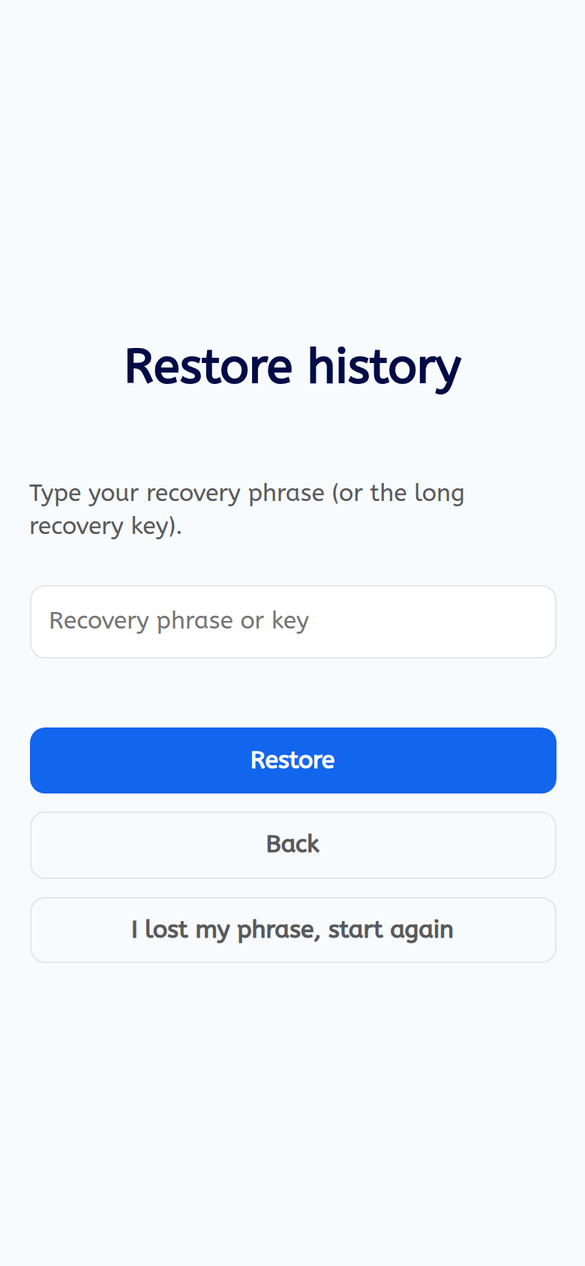
Type your recovery phrase
Type your five words (or the long recovery key) and tap “Restore”. Capital letters and extra spaces do not matter.
Your older messages appear within a few seconds.
Lost your phrase?
Tap “I lost my phrase, start again” on the Restore screen. The app then lets you make a new phrase and read new messages from now on. Messages that were only readable with the old phrase stay locked for good. We cannot unlock them.
If something goes wrong
It says "That phrase or key did not work."
Check the words one at a time. They are five ordinary English words with a space between each.
Can I use the phrase in Element too?
Yes. It is the same security phrase that Element asks for.