User Manual
Reset your password.
Forgot it, or want a new one? Pick your situation.
You have one password for the website, the M8Chat app and Element. You only change it on the website. We update the rest.
I forgot my password
- Step 2
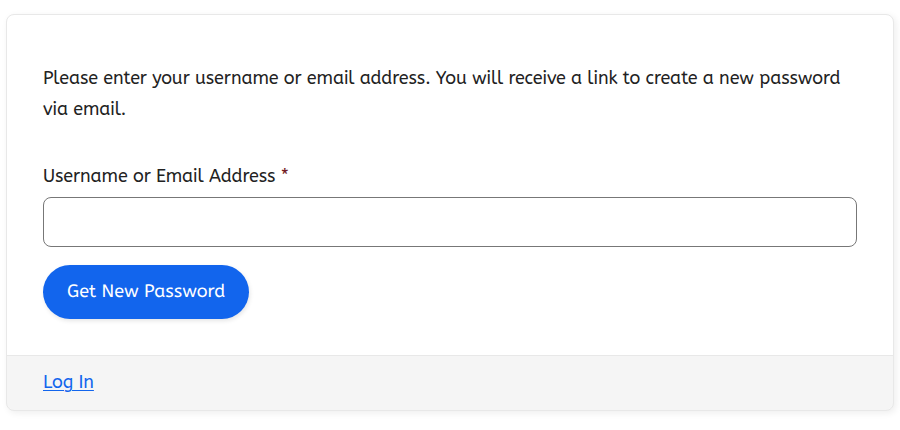
Ask for a reset link
Enter your username or the email you joined with, then click “Get New Password”.
- Step 3
Check your email
Look in your inbox and your spam or junk folder. Click the link and choose a new password.
I just want to change it
- Step 1
Log in to the website
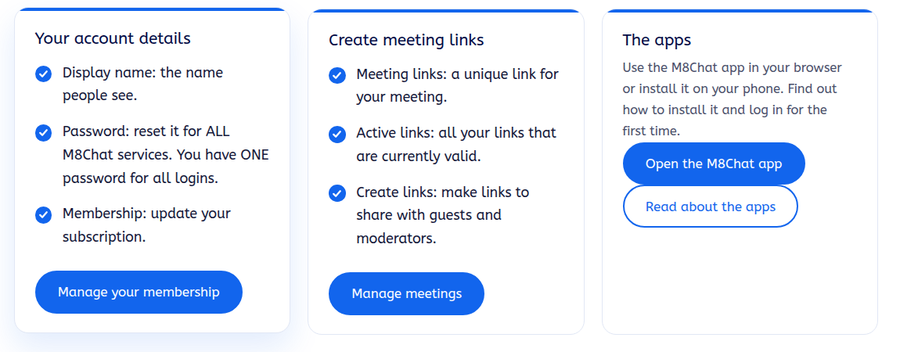
Open your dashboard and choose “Manage your membership”.
- Step 2
Change your password
Enter your current password, then your new one twice, and save.
After you change it
- The new password works on the website, in the M8Chat app and in Element (Web, Desktop and X).
- Give it a couple of minutes to reach the chat system, then sign in.
- You may need to sign in again on devices you were already using.
- Your encrypted messages are not affected. Your recovery phrase, Security Phrase and Security Key stay the same.
If something goes wrong
The reset email never arrived
Check spam and junk, and make sure you used the email you joined with. Try again after five minutes, then use the contact form.
I do not remember which email I used
Use the contact form with your username and we will help.
The new password still fails in Element
Check the homeserver is matrix.m8chat.au, wait two minutes, then close and reopen the app.
The new password still fails in the M8Chat app
Wait two minutes, then reload app.m8chat.au and sign in again.