
User Manual
Hosting and managing meetings.
Create a meeting, run it, and find the recording afterwards.
Create a meeting
You can do this on the website or in the M8Chat app. Both show the same list of meetings.
- Step 1
On the website
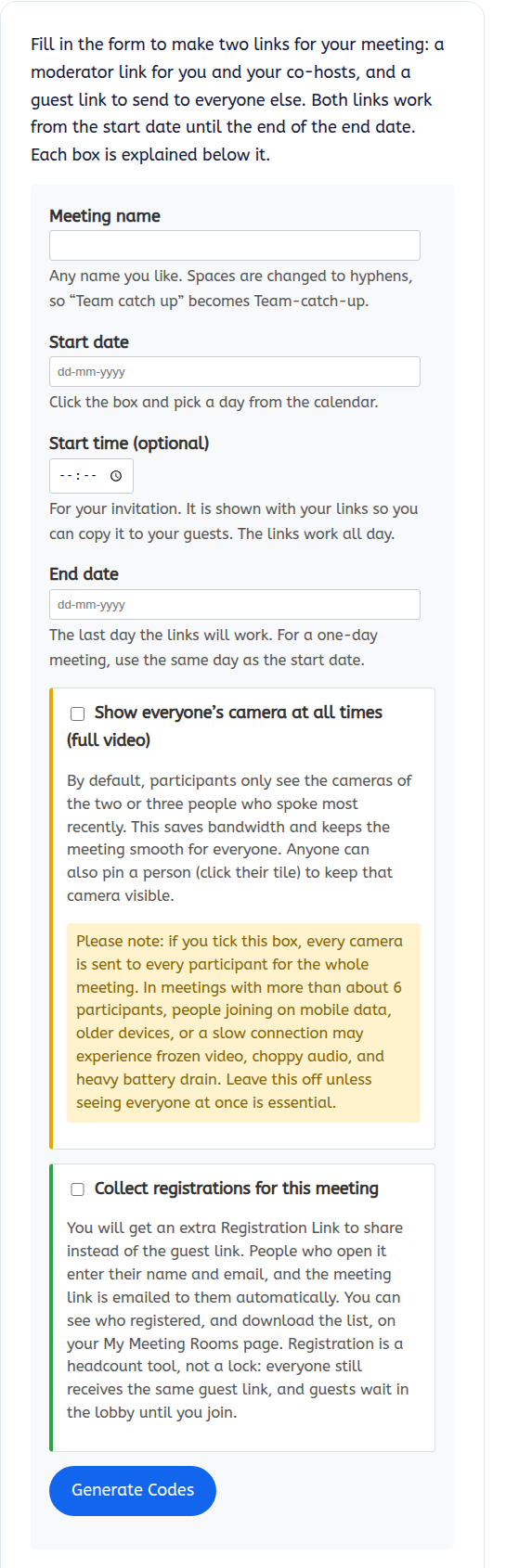
Log in to m8chat.au, open your dashboard and choose “Manage meetings”. Enter a meeting name (spaces turn into hyphens), the start and end dates, and an optional start time, then choose “Generate Codes”.
- Step 2
Or in the M8Chat app
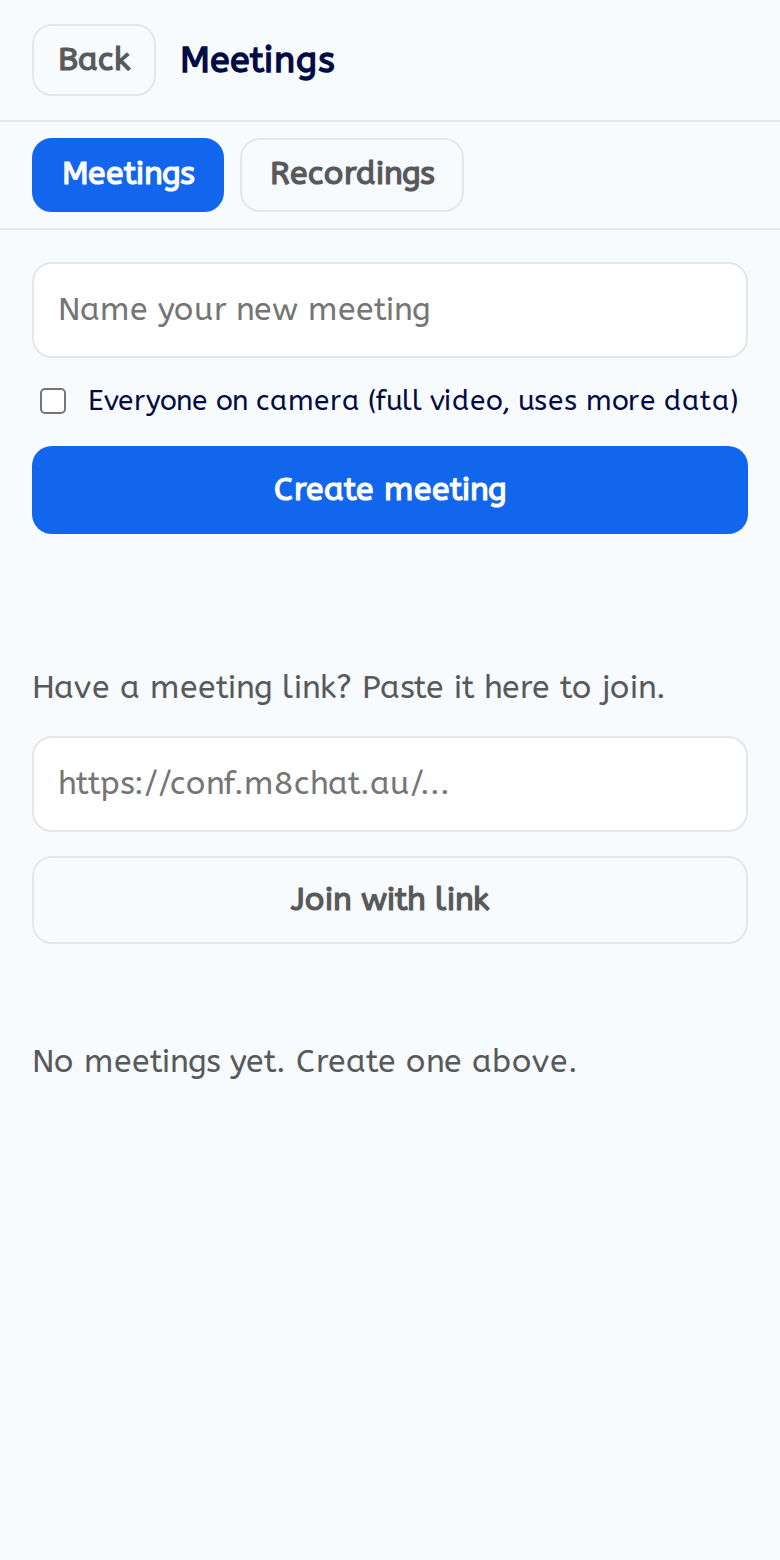
Open app.m8chat.au, tap “Meetings”, type a name and tap “Create meeting”. The app guide shows the screens.
- Step 3
Keep the right link
You get two links.
- Host (moderator) link: for you and anyone who helps run the meeting.
- Guest link: share this with everyone else.
Keep the host link private. Anyone who has it can control your meeting.
- Step 4
Start the meeting
Open your host link, or tap “Start” in the app. Guests join with the guest link.
Host controls
- Mute everyone, or one person: click their name, then Mute.
- Remove someone: click their name, then Kick.
- Lobby: Security button, then Enable lobby. You approve each person before they join.
- Password: Security button, then Add password.
- Record: use the Record button, or the three dots menu then Start recording. Everyone is told recording has started.
- Make someone a moderator: click their name and grant moderator.
The whiteboard and shared notepad work the same for hosts and guests. See Joining a video meeting.
Recordings, transcripts and minutes
When a meeting you hosted was recorded, the video is processed after the meeting ends. A transcript and AI-written minutes are made from it. This can take a while for a long meeting.
- In the M8Chat app: Meetings, then the “Recordings” tab. Use “Minutes and summary”, “Transcript” and “Download recording”.
Recordings are not end-to-end encrypted, unlike your chats. Tell guests when you record.
If something goes wrong
I lost my host link
Open Manage meetings on the website, or the Meetings screen in the M8Chat app. Your links are there.
Someone is being disruptive
Click their name and remove them. Turn on the lobby so they cannot rejoin without your approval.
My recording is missing
Wait a while, then check again. Long meetings take longer. If it is still missing, use the contact form.
Can I schedule a meeting for later?
On the website, set the start date when you create it. The link works from that date.