
The M8Chat app
Sign in and out.
One username and password for every M8Chat service.
Use this guide when
- This is your first time opening the app.
- You want to sign out, for example on a shared computer.
You use the same username and password as on m8chat.au. If you can log in to the website, you can sign in to the app.
- Step 1
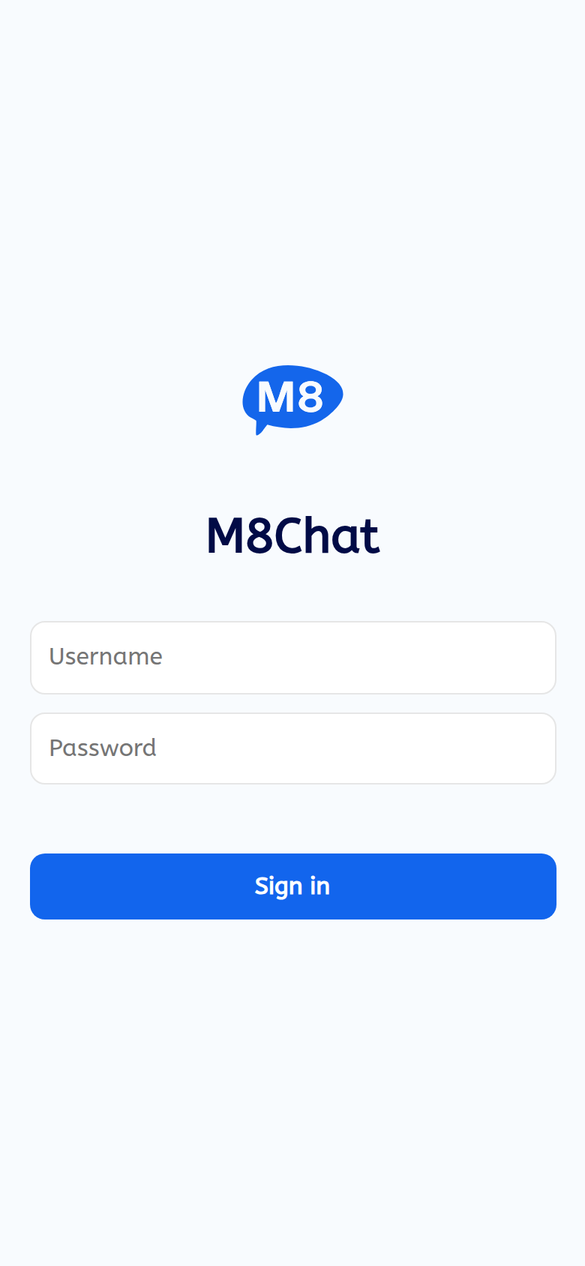
Enter your username and password
Type your username and password, then tap “Sign in”. You only type your username, not an email address or a server name.
- Step 2
Wait for your chats to load
Your chat list appears in a few seconds. The first time on a new device it may show “Restore your message history on this device.” See Restore your history on a new device.
- Step 3
Sign out when you are done
Tap “Sign out” at the top of the chat list. The app clears your chats from that device straight away. Use this on any shared or borrowed phone or computer.
The next time you sign in on that device you will need your recovery phrase to read your old messages. Make sure you have it first.
If something goes wrong
It says "Wrong username or password."
Check for capital letters and spaces. If you are sure, use Reset your password.
It says "Could not sign in. Try again."
This usually means a poor connection. Check your internet and try again in a minute.
I forgot my password
Use Reset your password. A new password does not change your recovery phrase.