
The M8Chat app
Protect your message history.
Your chats are end-to-end encrypted. Your recovery phrase is the only way to read them on a new phone or computer.
Use this guide when
- You see “Protect your message history so you can read it on a new phone.” at the top of your chat list.
- You want to be able to read your messages after changing phone or computer.
Do this once, the first time you sign in. It takes a minute. Without it, a lost or reset phone means old messages cannot be read again.
- Step 1
Tap "Protect"
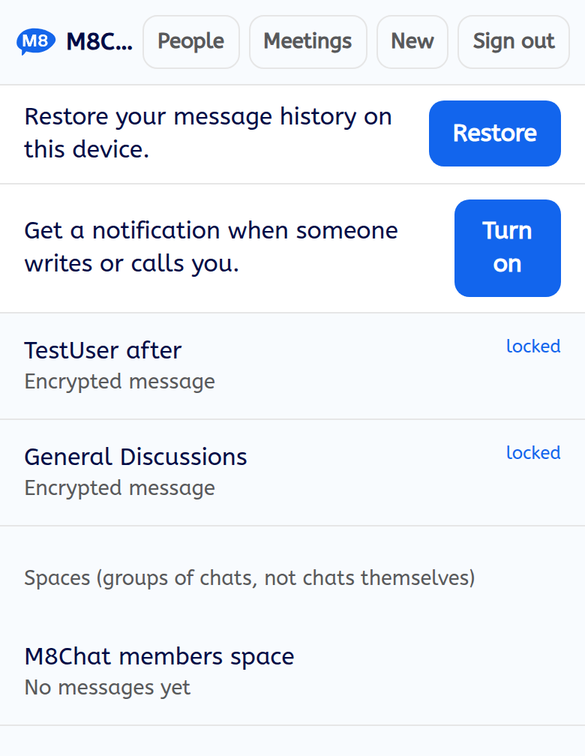
At the top of your chat list you will see “Protect your message history so you can read it on a new phone.” Tap “Protect”.
- Step 2
Confirm your password
Type your password and tap “Create recovery phrase”. The app then makes your phrase and your encryption keys.
- Step 3
Save your recovery phrase
The phrase is shown once. Write it down now.
It is five random words, for example “river ladder orbit seven cabin”. Tap “Copy” or write the words down. Keep them somewhere safe: a password manager or a printed page. Do not keep it only in the chat app.
Under the phrase there is a “Long recovery key (backup)”. You do not need it as long as you keep your phrase.
- Step 4
Tick the box and finish
Tick “I have saved it”, then tap “Done”. You are back at your chat list and the banner is gone.
If something goes wrong
I did not save my phrase
Sign in on a device you already use. You can make a new phrase from there. Older messages that were only readable with the lost phrase stay locked.
Can anyone at M8Chat read my phrase?
No. We never see it. That is why we cannot recover it for you.
It says "Could not set up protection"
Check your password and your connection and try again.