
The M8Chat app
Create and run meetings.
Make a meeting in seconds, share one link and start when you are ready.
Use this guide when
- You want a video meeting with people who may not be M8Chat members.
- You were sent a meeting link and want to join it from the app.
The Meetings list is the same as Manage meetings on the website. A meeting you make in one place shows in the other.
- Step 1
Open Meetings
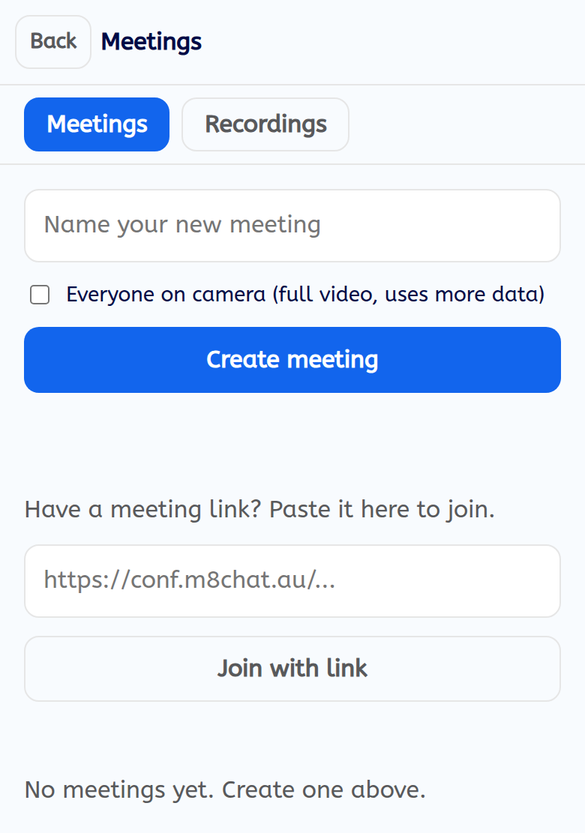
Tap “Meetings” at the top of your chat list. You see “Name your new meeting”, “Everyone on camera”, “Create meeting” and a box for joining with a link.
- Step 2
Create a meeting
Type a name and tap “Create meeting”. Tick “Everyone on camera” only if you want full video for everyone, because it uses more data.
- Step 3
Share the guest link and keep the host link
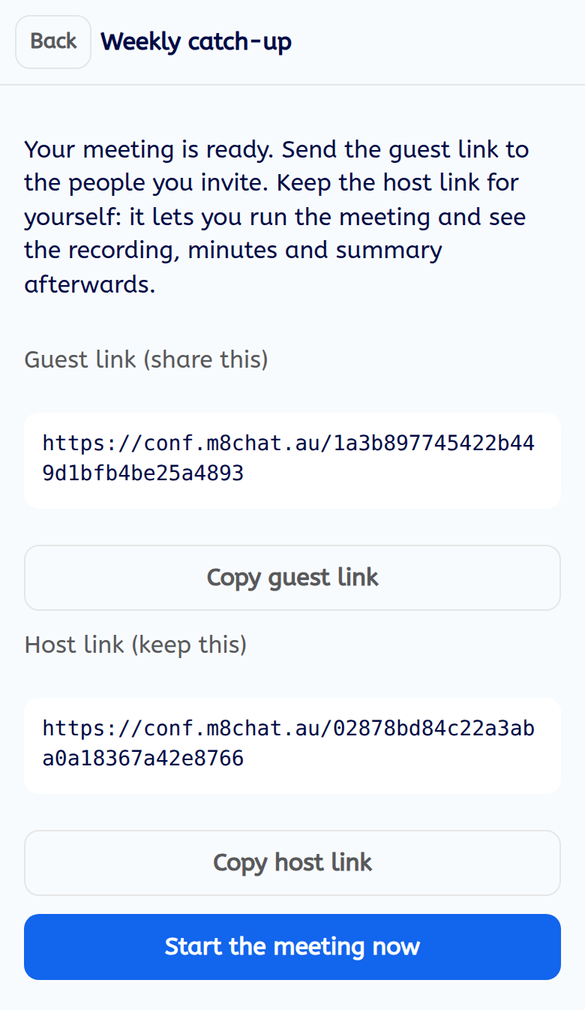
The app shows two links. Send the guest link to the people you invite. Keep the host link for yourself: it lets you run the meeting and see the recording afterwards. Tap “Start the meeting now” to begin.
- Step 4
Manage your meetings
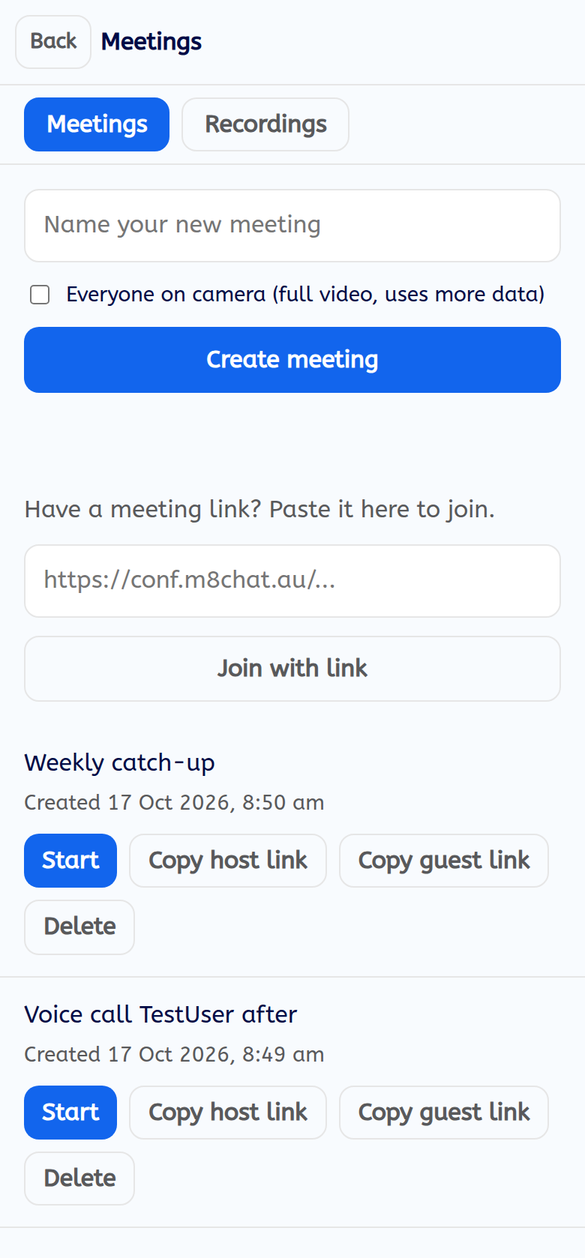
Each meeting in your list has “Start”, “Copy host link”, “Copy guest link” and “Delete”. Deleting asks you to confirm and then stops the meeting links working. Keep the host link private, because whoever holds it can control the meeting.
- Step 5
Join with a link
If someone sent you a meeting link, paste it under “Have a meeting link? Paste it here to join.” and tap “Join with link”.
If something goes wrong
It says "That does not look like a meeting link"
Paste the whole link, starting with https://conf.m8chat.au/.
Someone cannot get in
Check they have the guest link, and that you have not deleted the meeting.
Where is my recording?
See Recordings.