
The M8Chat app
Recordings, minutes and transcripts.
After a meeting you host, the recording and written notes wait for you here.
Use this guide when
- You hosted a meeting and want the recording or the written minutes.
- You want to download a recording.
Only meetings you host appear here. Each one shows the date, the file size and how long we keep it.
- Step 1
Open the Recordings tab
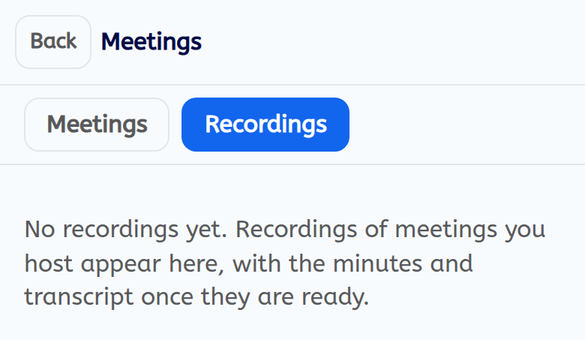
Tap “Meetings” at the top of your chat list, then tap the “Recordings” tab. With no recordings yet you see “No recordings yet. Recordings of meetings you host appear here, with the minutes and transcript once they are ready.”
- Step 2
Open the minutes or transcript
When they are ready, each recording has “Minutes and summary” and “Transcript”. Tap one to read it in the app. Until then you see “Minutes and transcript are still being prepared.”
- Step 3
Download the recording
Tap “Download recording” to save the video file to your device.
If something goes wrong
My recording is not there
Recordings appear a little while after the meeting ends. Check again later. Only the host sees them.
How long do you keep recordings?
Each recording shows “kept until” with its date.